
The Problem#
Microsofts latest update to Office 365 has changed the way “Share” function operates. Previously, when you clicked the “Share” button, you were presented with a list of options, including sharing a link, or attaching a copy of your document instead.
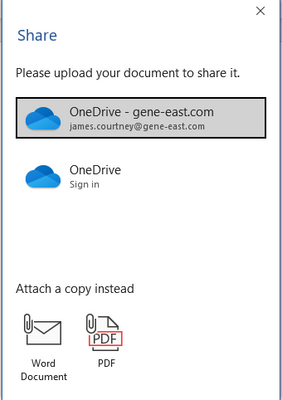
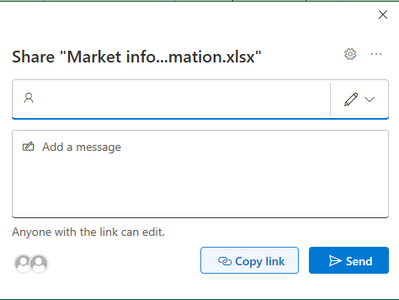
Now, if the file you are working on is already saved in a shareable OneDrive or Sharepoint locationsync’d, the only option you are presented is to share a link to the document. The “Send a Copy” option is missing.
The Workaround#
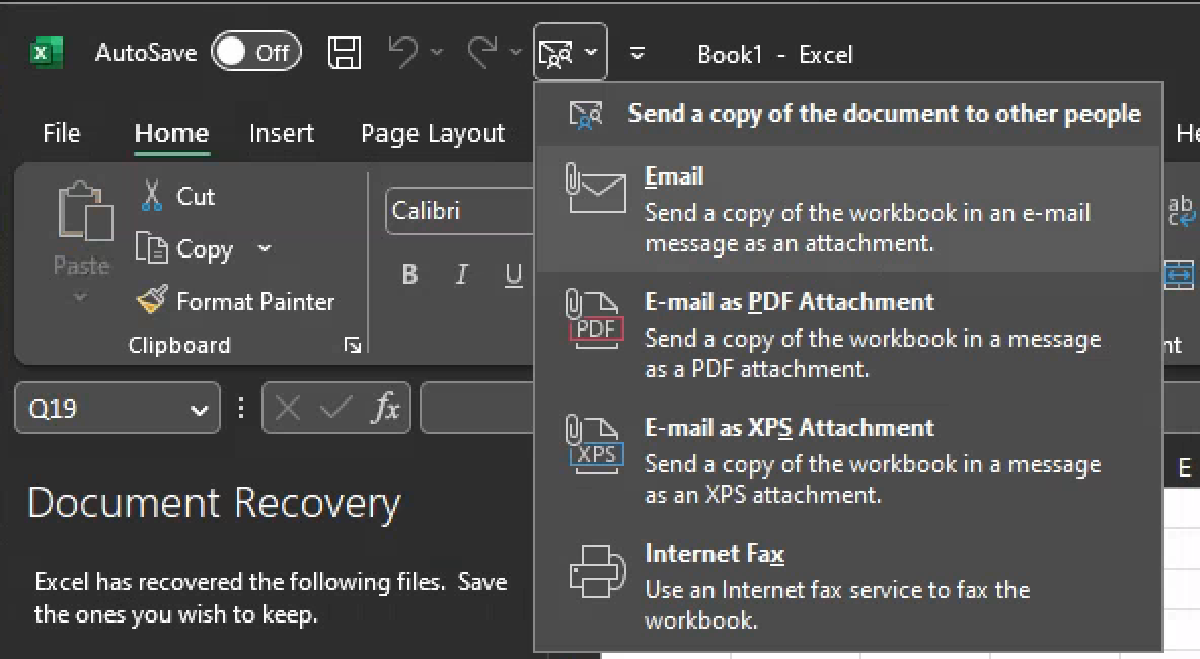
The workaround is to pin the Send menu to your quick access toolbar, which will then give you access to the Send A Copy function again.
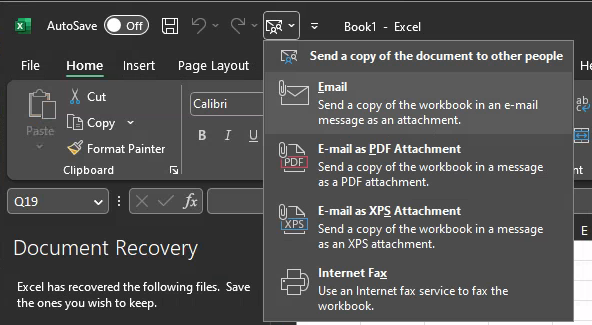
How to Pin the Send Menu#
- Right click on the Quick Access Toolbar and select
Customize Quick Access Toolbar - In the left-hand column, select
All Commandsfrom theChoose commands fromdropdown - In the left-hand column, scroll down to the
Sendmenu and select it. - Click the
Addbutton to add it to the Quick Access Toolbar - Click
OKto save the changes - You should now see the Send menu in your Quick Access Toolbar