
Check Task Manager#
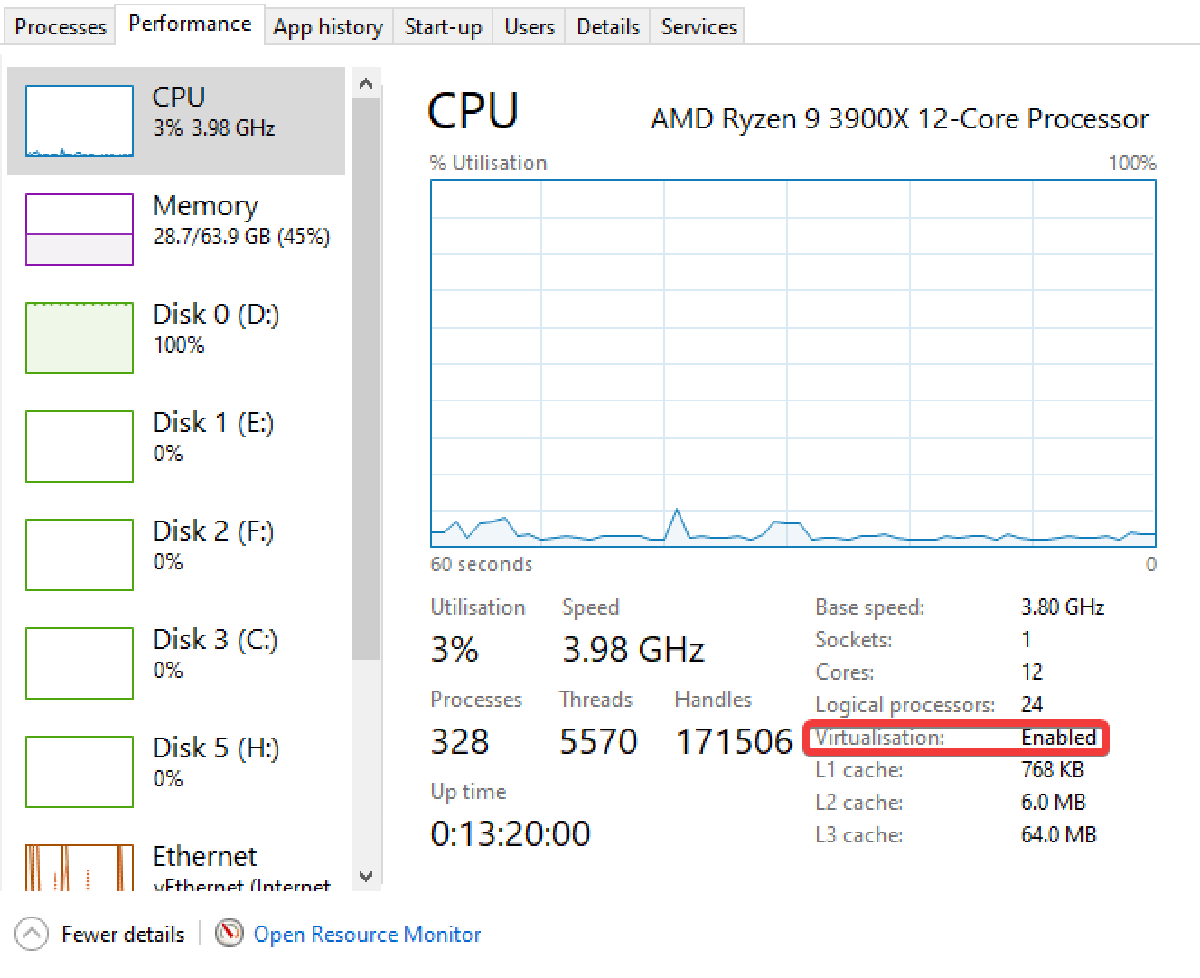
- The first, simplest option to check is to open task manager.
- Click the performance tab
- Check if Virtualisation is Enabled
If Virtualisation is not Enabled, this could be due to it being disabled in the BIOS. Before enabling it, check if your processor is compatible.
Check Processor Compatibility#
- Identify your Processor
- Press the Windows Key
- Type “System Information” in the search box
- Make a note of your processor make and model
- Check Product Specs - Intel:
- If your processor is Intel, go to the Intel Product Specification Page and look up your processor model and open the specification page.
- Under the “Advanced Technologies” heading, if Virtualisation is supported, Intel Virtualization Technology (VT-x) will say yes
- Check Product Specs - AMD:
- If your processor is AMD, go to the AMD Product Specification Page and look up your processor model and open the specification page.
- If the Launch Date is any time after 2007, your CPU supports virtualisation. Unlike Intel, AMD don’t reserve Virtualisation technologies for only some of their processors.